figma_starting_page
The Figma 2021 Crash Course by Example
This is first attempt to work with Figma, tool for designing user interface.
- create your Figma account and login
- useful link UI Goodies
- background used UI Goodies -> Patterns and backgrounds -> Subtle Patterns which leads to this site -> Greek Vase Pattern
- hero image -> in the tutorial it has been downloaded Storefront Illustration, however seems something has changed and there is no option to download this particular illustration (tutorial shows that it is possible to download this as zip file with
svgfile), there is only button sayingDownload FREE Right Herewhich redirects to here and requires some email address- when
svgfile has been unzipped, then he just drag-and-dropped from Desktop to Figma canvas and it appears asAsset
- when
- Figma plugins installed: Iconify, Lorem ipsum, Unsplash
- import 1_design.fig to your account and explore the project, therefore:
- download 1_design.fig to your local disc drive,
- after logging-in to Figma you will see Import icon in the upper right corner of the page, so hit it and choose the downloaded 1_design.fig,
- that’s all, should work straight away
- no local copy of the repo
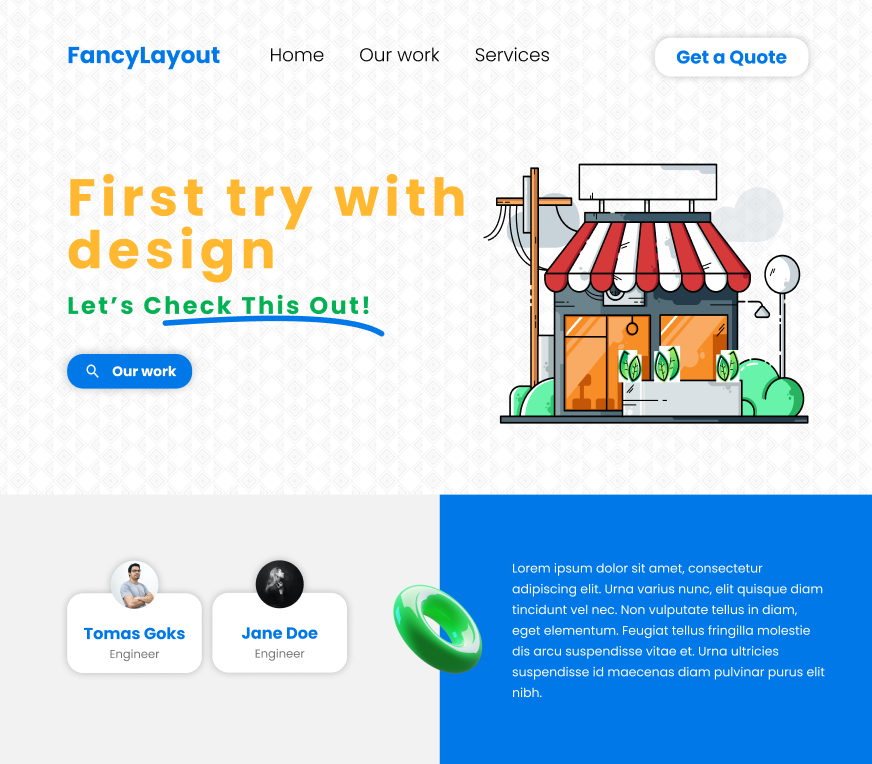
First/landing page of the design:
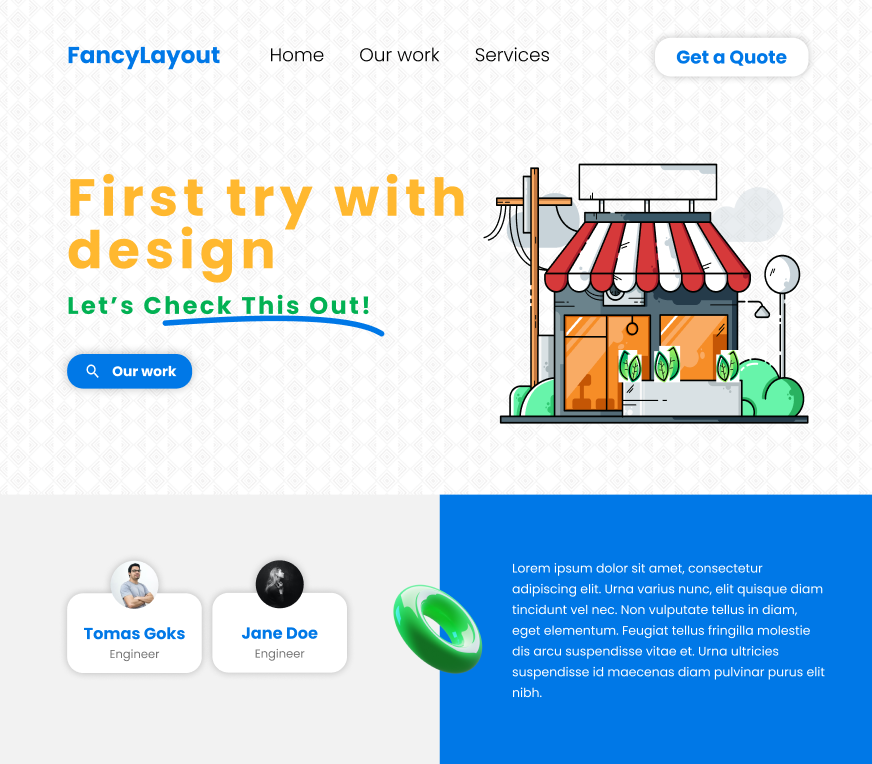
Seems that relative links also work:
Useful functions of Figma
- Drag (resize) the frame (when you have large frame and want to tailor it to image inside the frame, useful when exporting and do not want to keep additional spaces around the image, I found it useful when playing aroung creating some logos, and when exporting I wanted to have only this logo without any margins on the top/bottom/left/right), so there are two interesting ways to do that:
- manually: just change the size of the frame as you wish, just in the same way as you would do with rectangle, however keep
Ctrlpressed to change frame size only, not the size of the image inside the frame info - automatically: use button on the right hand side with four arrows pointing to the center (you can find it near to X, Y, width, height properties), it adjust frame to fit the content of the frame, or just hit this link info to see how this button looks like
- I found that when image is rotated, then automatic resizing of the frame does not work in the way as I wish, therefore you should use manual resizing (automatic resizing takes the most outside corners of the rotated image and based on that resizes the frame, so when exporting there is too much additional space)
- Figma published tutorial on this topic, could be interesting Resizing frames in Figma Design
- manually: just change the size of the frame as you wish, just in the same way as you would do with rectangle, however keep
- Resize imported image with
left Alt- look for example image from Google, copy image and then
Ctrl+Vto paste it in Figma - when you try to resize the image with
left Althitted (select the image first and then hitleft Alt, then try to resize the image), then image is being resized around the center, in other words: center of the image is in stable position and only space around is being resized (looks like the space around the center of the image is being cropped) - the Figma design you can verify it is named
shadows_training
- look for example image from Google, copy image and then
- Export image: just select the object you want to export on the left hand side (the pane with
Layers,Assetsand list of all object you have in your design) and go to right hand side and look forExportfunction, there is alsoPreviewbefore exporting - Select multiple objects: with
Shift Create componentfunction: when you create component, you have it visible inAssetstab (on the left hand side), the component is re-usable item, when you place few instances/copies of the component, and change something inmastercomponent (remember, inmaster, not in copies), then changes are visible in all copies of hismastercomponent (from tutorials I can see this is useful for example when you have few texts, and afterwards you want to change the color of all these texts, or useful when creating the buttons which should look like in similar way)mastercomponent is marked as four diamonds, when copy ofmastercomponent is marked as single diamond- you can change something in copy of the
mastercomponent (for example change line color from black to red), and when you change the same line inmastercomponent then your copy remains not changed! you can select you copy and then right click and hitReset all overridesto have exactly the same copy ofmastercomponent again - there is also useful view on the right hand side when copy of
mastercomponents is selected which informs what is themastercomponent for this copy
- Autoflow plugin (
Plugins->Browse Plugins in Community-> search forAutoflow->Install)- this is for automatic drawing arrows between frames to create flowcharts
- when you want to use this plugin after installation just hit
Plugins->Autoflow
PenandBendtool: too much to write, just have a look at Figma Tutorial: Pen Tool Basics & Vector NetworksQuick actions- search tool for finding options you need, useCtrl+/orFigma menu->Quick actions
Useful functions of GIMP
- Remove background or make it transparent (based on this tutorial)
- open image and make sure
Layer->Transparency->Add Alpha Channelis added (this makes sure your image can store transparency data)- when it is greyed out already, then that is fine, when I opened
.jpgfile then this action needed to be done
- when it is greyed out already, then that is fine, when I opened
- select the background which you want to make transparent (you can start with selection tool called
Fuzzy Select:Tools->Selection Tools->Fuzzy Selector just hitUshortcut) - hit
Delete - when background is not uniform, for example it is white with some grey areas, some additional manual work with selection is required, you can then zoom-in and use
Tools->Selection Tools->Rectangle Selectand hitDeleteagain, repeat the process if needed (or you can still useFuzzy Select) - once all removing job is done, choose
File->Export Asand double-check you are exporting to.pngfile (Select File Type (By Extension)) and keep all settings default - you should then receive image without background (or background is transparent)
- open image and make sure
Useful resources with graphics/illustrations/icons
- UI Goodies - hit
Illustrationsto look for interesting graphics - Flaticon - look for particular icon on the main page and then switch tab to
Free